To get an alarm with no snooze on iPhone, open the Clock app, edit your alarm and switch off Snooze. But if you're a chronic snoozer, that's often not enough: the Stop button is still one tap away. A no-snooze alarm app removes both, so the alarm only stops after you complete a task you can't do half-asleep, like solving math problems or taking a photo in another room.
Snoozing is extremely common. In a University of Notre Dame study of 450 adults, 57% were snoozers, and snoozers showed lighter sleep in the time before they finally woke up. The pattern is always the same: the alarm rings, a hand reaches out, and you're back to sleep before your brain has a say.
Key takeaways
- You can disable snooze on any iPhone alarm in the Clock app in a few seconds.
- No snooze isn't the same as no going back to sleep. A plain Stop button is just as easy to tap half-asleep.
- A real no-snooze alarm app replaces Stop with a mission: math, a photo, push-ups or typing.
- Check silent mode and Focus. The alarm has to ring every morning, even when the phone is muted.
- Add a second check a few minutes later to catch the "finish the task, crawl back to bed" trap.
What does "no snooze" mean on an alarm?
The snooze option on an alarm lets you silence it for a few minutes; then it rings again. A no-snooze alarm removes that option: the only choice is to stop the alarm. On iPhone, the snooze button is on by default for every new alarm, which is why so many people get "stuck" snoozing without ever deciding to.
How to turn off snooze on your iPhone alarm
- Open the Clock app and tap Alarms.
- Tap the alarm you want to change (or tap Edit, then the alarm).
- Switch off Snooze.
- Tap Save. Repeat for every alarm you use.
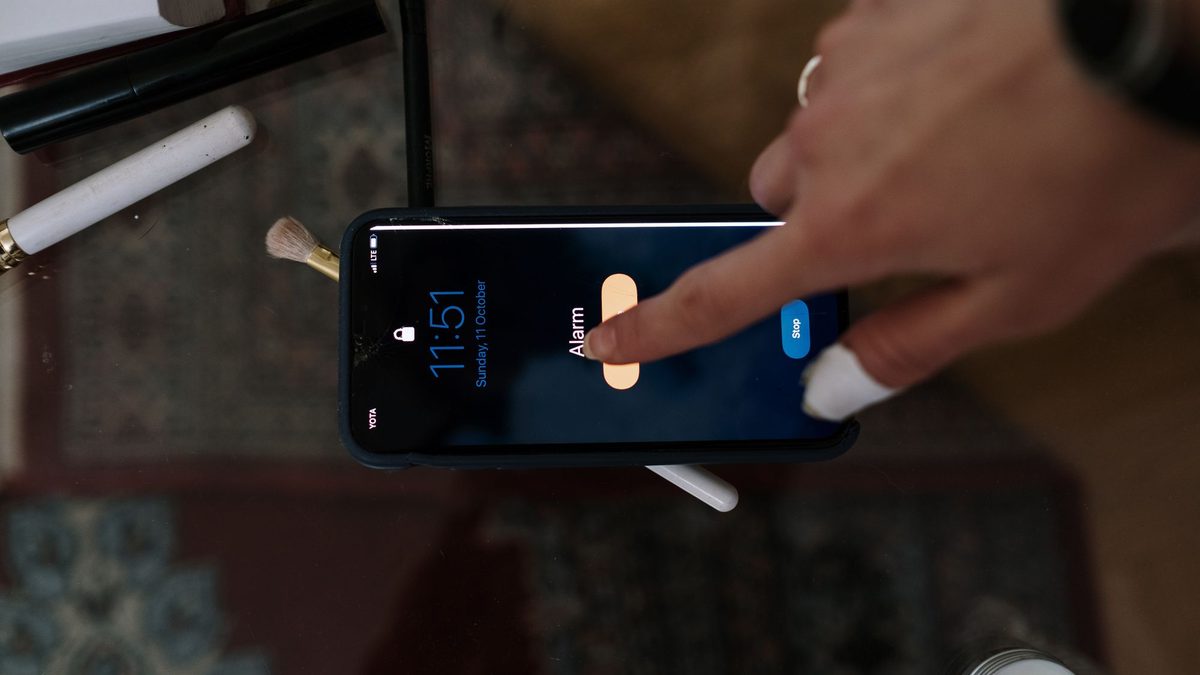
That's it: the next time the alarm rings, there's only a Stop button. Still, this native option has a limit. If your iPhone alarm seems to go straight to snooze or you keep switching it off without remembering, the problem isn't the button. It's sleep inertia: in the first minutes after waking, your brain is foggy enough to dismiss any alarm on autopilot.
Why disabling snooze isn't enough for chronic snoozers
For heavy sleepers and people who are chronically late or oversleep every morning, a no-snooze alarm with a Stop button just changes the failure mode: instead of snoozing five times, you stop the alarm once and fall back asleep. The mechanism that keeps you in bed is still there: an easy, one-tap way to make the noise go away.
What works is replacing that tap with something your half-asleep brain can't do on autopilot. That's the idea behind no-snooze alarm apps: the alarm keeps ringing until you finish a wake-up task.
What is a no-snooze alarm app?
A no-snooze alarm app is an alarm with no snooze button and no simple way to dismiss it. To stop it, you complete a mission. Common missions:
| Mission | What you do | Why it wakes you |
|---|---|---|
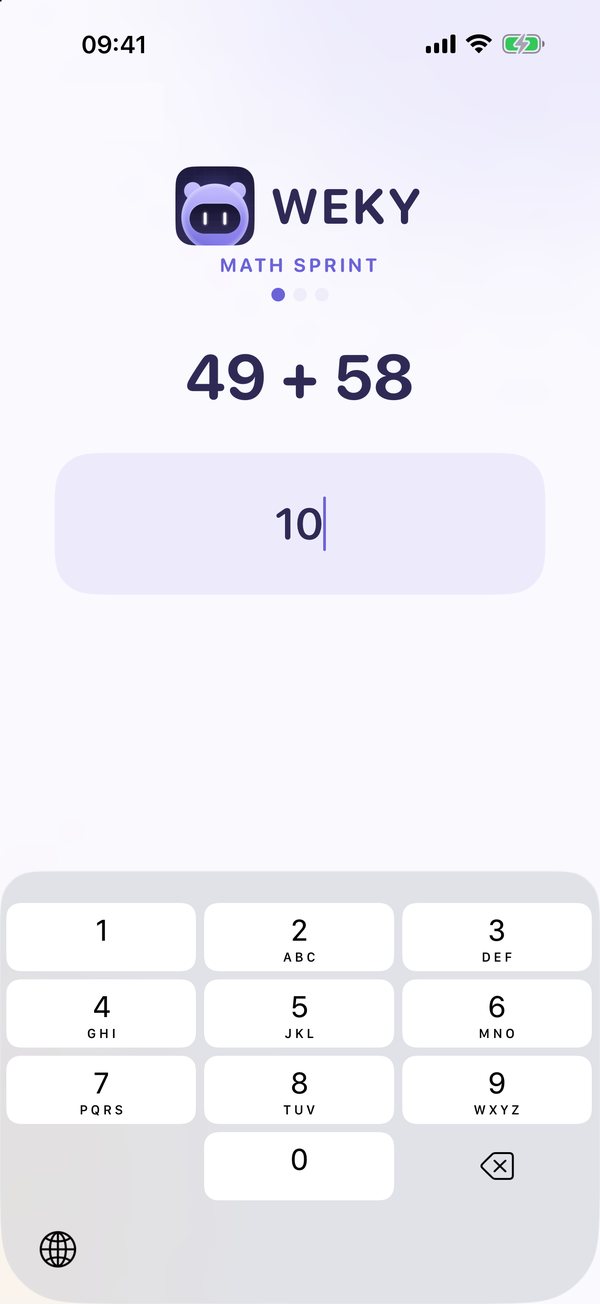
| Math problems | Solve a few equations and type the answers | Thinking is hard during sleep inertia, so your brain has to boot up |
| Photo | Take a photo of an object, the sky or your made bed | You have to get up and walk somewhere |
| Push-ups | Do your reps before the alarm stops | Raises your heart rate and wakes your body |
| Typing | Retype a random sentence exactly | Needs real focus, not a lucky tap |
| Barcode | Scan a product you keep in another room | Gets you out of the bedroom |
What to look for in a no-snooze alarm app
- No snooze at all. Not a snooze counter limited to 3 times, and no hidden snooze feature: none.
- Missions you can't do in bed. Math wakes your brain; a photo or barcode in another room gets you up. The best apps let you stack several.
- Rings in silent mode and Focus. Ask the question every heavy sleeper eventually asks: what happens when the phone is on silent? The alarm should ring at full volume anyway, and even if the app was closed.
- A second check. A follow-up ring a few minutes after the mission catches you if you finish it in bed and go back to sleep.
- Configurable missions. You should be able to choose how many math problems, how many reps or which object to photograph, so the challenge fits you.
- Hard to cheat. No quick way to cancel the alarm at midnight or delete the app while it rings.
- Privacy. Camera missions should check the photo on your phone, not upload your bedroom to a server.
Several apps on the App Store take this approach, like Alarmy and Mornly, each with its own set of missions and premium features. Look past the screenshots and the UI: install one, use it for a week and track how often you're awake on the first ring. One tip: set your mission somewhere you can't reach from bed, so you can't dismiss the alarm by accident. And if you mainly want to track your sleep rather than force yourself up, a sleep tracker like Sleep Cycle answers a different need.
Weky: the alarm app with no snooze button
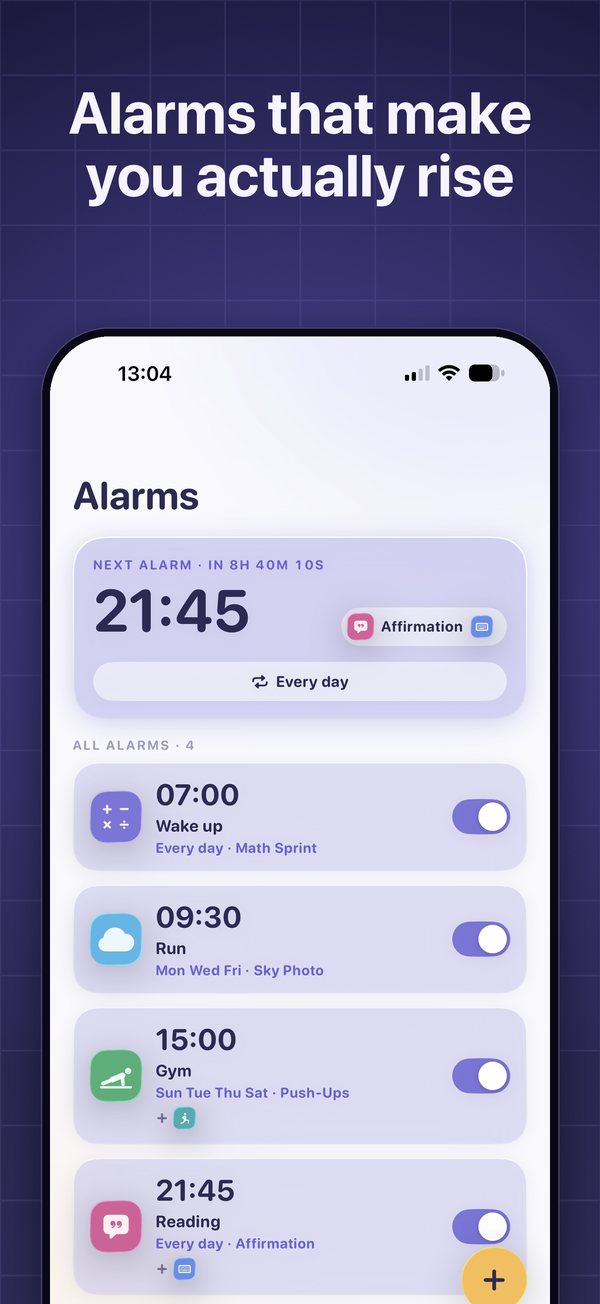
Weky is an iPhone alarm built for chronic snoozers and heavy sleepers. We created it for every user who knows the snooze button too well. There's no snooze button and no easy Stop: the alarm only goes quiet when your wake-up mission is done. A little annoying at 6 a.m., yes; that's exactly what makes it work.
- Ten wake-up missions, from math problems and typing to push-ups, a photo hunt, a barcode scan, shaking the phone or saying an affirmation out loud. Stack up to five on one alarm.
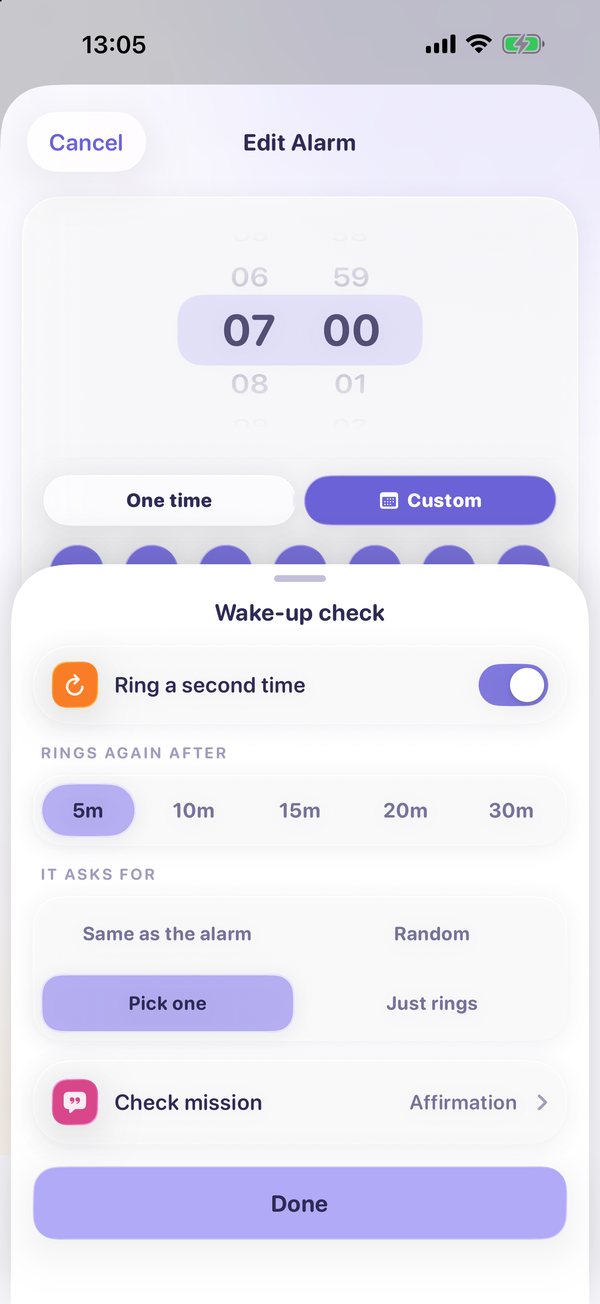
- The wake-up check rings again 5 to 30 minutes after your mission, so you can't solve it half-asleep and slip back under the blanket.
- Rings in silent mode and Focus. Weky schedules a real iOS system alarm, so it rings on the lock screen even if the app is closed.
- Locked before it rings. You can't cancel the alarm late at night on a whim, and Guard Weky while ringing stops you from deleting the app to get back to sleep.
- A streak for every morning you win, so getting up on the first ring becomes a habit you can track.
Weky is free to download; Weky Pro is available monthly, yearly (with a 7-day free trial) or lifetime.
Want to break the habit for good? Read how to stop hitting snooze, see the best alarm app for heavy sleepers, or learn how a math alarm clock works.
Frequently asked questions
What does "no snooze" mean on an iPhone alarm?
It means the alarm screen shows only a Stop button, with no Snooze option. When you stop it, the alarm doesn't ring again unless you set another one.
How do I make my alarm not snooze on iPhone?
Open the Clock app, go to Alarms, tap Edit (or tap the alarm), switch off Snooze and tap Save. Repeat for each alarm.
Are there alarm clocks without snooze?
Yes. Many alarm apps let you remove snooze, and some, like Weky, have no snooze button at all and only stop after a task such as solving math problems, taking a photo or doing push-ups.
Are no-snooze alarm apps effective for heavy sleepers?
They work best when the alarm also needs a task you can't do half-asleep. A plain no-snooze alarm still has a Stop button, so heavy sleepers often switch it off and fall back asleep. A mission plus a second check a few minutes later is much harder to beat.
Can a no-snooze alarm ring when my phone is on silent?
It depends on the app. The iPhone Clock app rings in silent mode. Weky schedules a real system alarm too, so it rings in silent mode and in Focus modes, even if the app is closed.
Are no-snooze alarms annoying?
A little, by design. That's the point: an alarm you can switch off with one tap is easy to ignore. Most people find the annoyance lasts seconds, while the time saved lasts the whole morning.
References
- Hilditch CJ, McHill AW. Sleep inertia: current insights. Nature and Science of Sleep, 2019;11:155–165.
- Mattingly SM, Martinez G, Young J, Cain MK, Striegel A. Snoozing: an examination of a common method of waking. Sleep, 2022;45(10):zsac184.
- Apple Support. Set an alarm in Clock on iPhone, accessed October 2026.