To use Weky, create an alarm, choose a wake-up mission the alarm won't stop without, turn on the wake-up check, and block the apps you scroll in bed until your mission is done. That's the core. This guide shows each step, how to pick one mission or stack several, and the setups that work best for heavy sleepers, snoozers and anyone building a morning habit.
First, why it works. In the first minutes after waking, your brain is still in sleep inertia: reaction time, memory and judgment are measurably worse, and "five more minutes" feels like a perfectly reasonable decision. A normal alarm asks that foggy brain to decide whether to get up. Weky doesn't ask. It hands you a task you can't do half-asleep, and by the time it's done, you're awake.
Key takeaways
- One alarm, one mission is enough to start. Pick a mission that gets you out of the bedroom.
- Stack up to five missions on one alarm if one ever becomes too easy.
- Turn on the wake-up check. It rings again a few minutes later, so going back to bed doesn't work.
- Block distracting apps from bedtime until your mission is done. Better nights make easier mornings.
- Weky rings every time: real system alarm, Silent mode and Focus included, no snooze anywhere.
Step 1: Create your first alarm
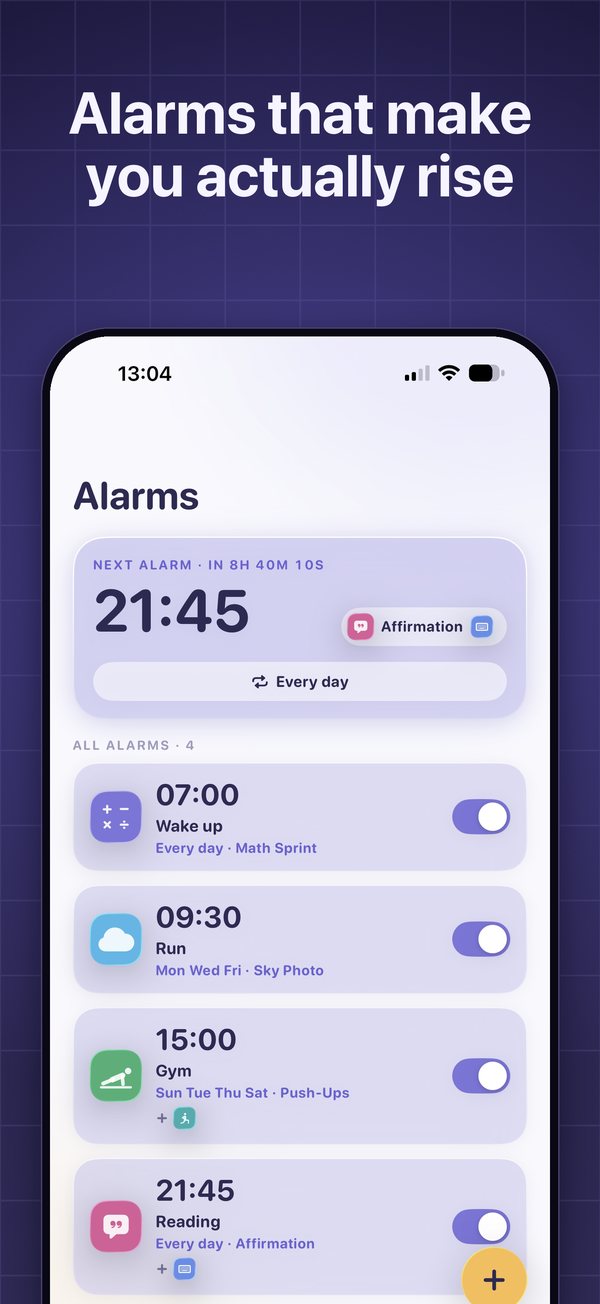
- Open the Alarms tab and tap New alarm.
- Set the time on the wheel.
- Choose the days: One time, Weekdays, Weekends, Every day, or tap the days you want.
- Name it (optional). Tap a suggestion like Work, Gym, Flight or Class, so two early alarms are easy to tell apart on the lock screen.
- Pick a mission (see Step 2).
- Choose the sound and whether the phone vibrates during the mission.
- Tap Save alarm.
Weky schedules every alarm as a real system alarm. It rings on the lock screen at the time you set, even if you force-quit the app, restart the phone or have Silent mode, Sleep, Work or any other Focus on. It doesn't need to stay open or run in the background, so it doesn't drain your battery. Tap the ringing alarm and your mission opens.
Step 2: Choose a mission
The mission is what the alarm demands before it goes quiet. There are ten, and every one is verified, so you can't fake it:
| Mission | What it asks | You can adjust | Best for |
|---|---|---|---|
| Math Sprint | Solve equations correctly | 3 to 7 equations | Waking the thinking brain |
| Typing Challenge | Retype a phrase exactly, no mistakes | – | Focus and precision |
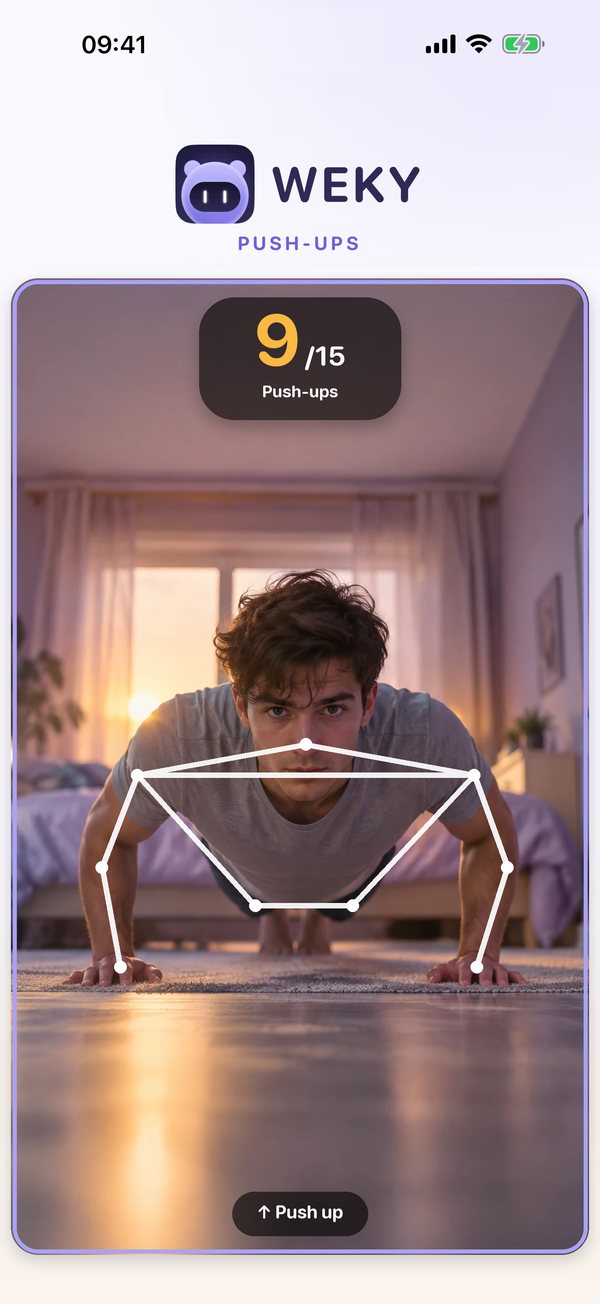
| Push-Ups | Do push-ups in front of the phone | Number of reps or a time | Getting your heart rate up |
| Squats | Do squats in front of the phone | Number of reps or a time | Getting out of bed fast |
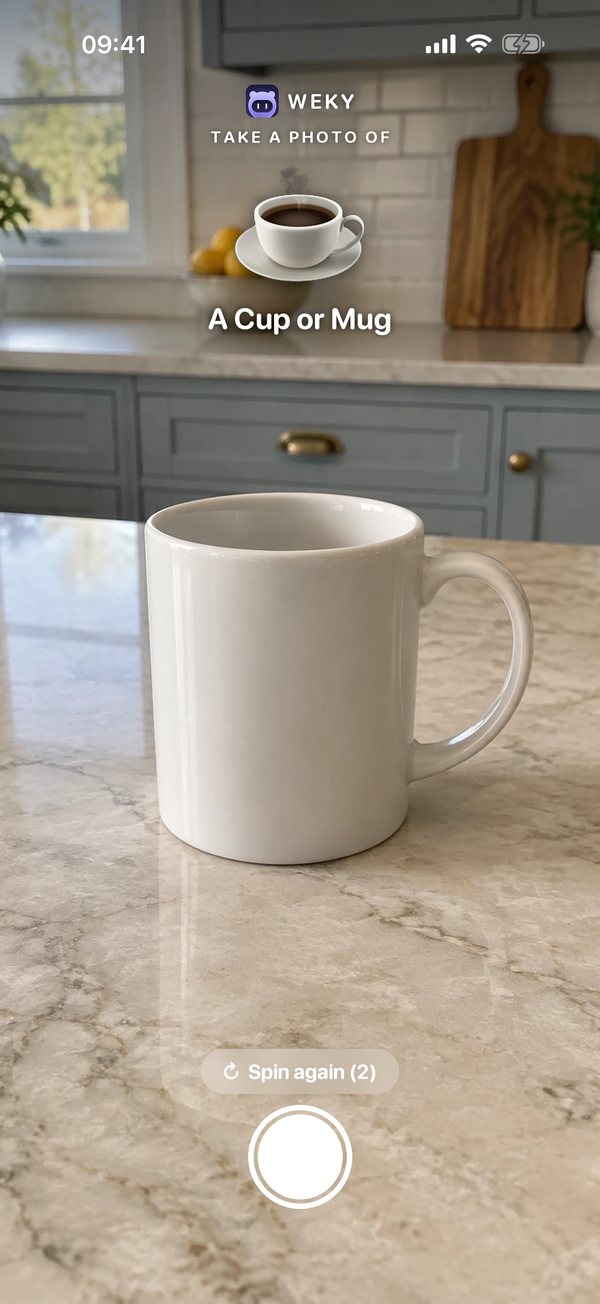
| Object Hunt | Photograph the object Weky asks for | Which objects you have at home | Walking to another room |
| Sky Photo | Photograph the sky | – | Morning light at a window |
| Make Your Bed | Make the bed and photograph it | – | Closing the door on going back to bed |
| Shake It Off | Shake the phone hard | Number of shakes | A quick physical jolt |
| Affirmation | Say the morning affirmation out loud | – | Starting with intention |
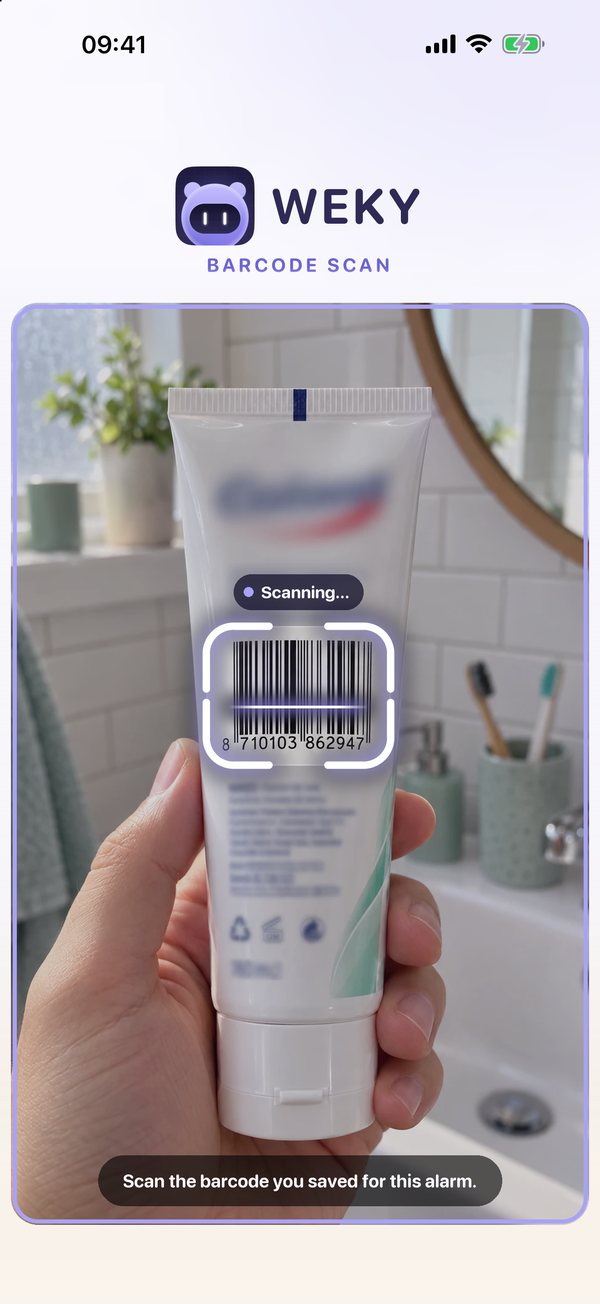
| Barcode Scan | Scan the product you saved | Which product | Heavy sleepers: it's in another room |
How to set up the missions that need a little preparation
- Barcode Scan: when you pick it, scan a product that lives in another room, like the toothpaste in the bathroom or a box in the kitchen. To stop the alarm, you'll have to walk there and scan it again.
- Object Hunt: tick the objects you actually have at home. Weky only asks for those, and picks a different one each time, so you can't leave it on your nightstand.
- Push-ups and squats: stand the phone up 1.5 to 2 metres away with your whole body in frame. Set a goal you can really finish, in reps or in seconds. If you can't do a full push-up yet, start with a time goal.
- Use Preview. Every mission can be tried in the editor before you choose it, so the first real morning isn't a surprise. It's also the best way to check the camera angle and light.
Step 3: One mission or several?
Start with one. For most people, one good mission is enough, as long as it's one you can't finish lying down. The best single choices are Barcode Scan, Object Hunt, Sky Photo or Make Your Bed, because they physically take you out of bed and often into the light.
Stack missions when one stops working. If you notice you can do your mission on autopilot, tap Add more missions. One alarm can hold up to five different missions, and they run in order: the alarm only goes quiet after the last one. Some setups that work well:
- The heavy sleeper: Math Sprint (wakes the brain), then Barcode Scan (gets you out of the room).
- The workout morning: Push-Ups, then Squats, then Sky Photo for daylight.
- The calm start: Make Your Bed, then Affirmation.
- The can't-be-trusted: Typing Challenge, Object Hunt, then Make Your Bed.
Keep the total short enough that you'll do it every day. Two or three missions is the sweet spot. Five is for the mornings that really matter.
Step 4: Turn on the wake-up check
The most common way to beat any alarm is to finish the task in bed and fall straight back asleep. The wake-up check closes that gap: a few minutes after your mission, Weky rings once more.
- Rings again after: 5, 10, 15, 20 or 30 minutes (10 by default).
- It asks for: Same as the alarm, Random (a different mission each time, so you can't prepare for it the night before), Pick one, or Just rings (dismissed with a tap).
For heavy sleepers, Random after 10 minutes is the strongest setting. The wake-up check is off on a new alarm, so remember to switch it on.
Step 5: Block distracting apps from bedtime
Many bad mornings start the night before: one more video at midnight, and the alarm at 7 feels like 4. Weky can lock the apps that keep you up, from a time you choose until your morning mission is done.
- In the alarm editor, open App blocking.
- Allow access when iOS asks. Your alarm rings either way; access is only needed for blocking.
- Tap Select apps to block and choose the apps you scroll in bed: social feeds, video, games.
- Set when blocking Starts, for example 10 p.m. It has to be earlier than the alarm.
- Choose when it Ends: Mission done (the default, and the best one) or Alarm rings.

Why Mission done is the best end: the minutes right after the alarm are when the phone pulls you back into bed. If the apps stay locked until you've finished your mission, the first thing you do in the morning is get up, not scroll.
Use it efficiently:
- Block the apps, not the phone. Pick the two or three apps that really eat your nights and leave messages and maps alone.
- Start blocking 30 to 60 minutes before you want to sleep, not at the moment you plan to fall asleep. That's the wind-down time your brain needs.
- Replace, don't just remove. Put a book or a podcast where the feed used to be.
Step 6: Let the alarm hold you to it
- Locked alarms. Before an alarm rings, it locks: you can't edit it or switch it off at 2 a.m. on a whim. How early depends on the strictness you chose when you set Weky up: 15 minutes (Gentle), 1 hour (Firm) or 4 hours (Ruthless). An emergency override exists for real emergencies, and every override is counted.
- Weky guard. In Settings, turn on Guard Weky while ringing if you're tempted to delete the app to get back to sleep. While an alarm rings, apps can't be deleted; it lifts as soon as the mission is done.
- Keep it ringing. By default the alarm keeps sounding while the mission is on screen. Leave it on for heavy-sleeper mornings.
Step 7: Build habits and a streak
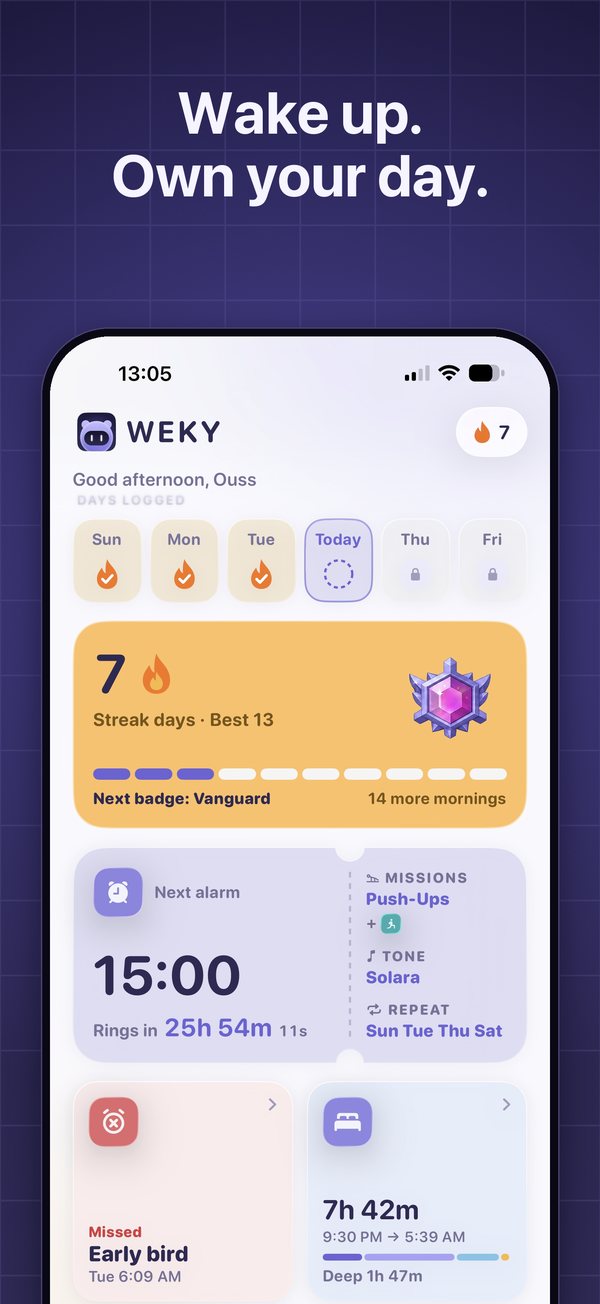
Waking up is usually step one of something: the gym, a run, studying. In the alarm editor, switch on Track as a habit and choose Gym, Running, Hiking, Walk, Swim, Cycling, Reading, Meditation, Stretching, Study or your own. Each habit gets its own alarm, colour, 90-day calendar and separate streak, so a missed gym morning never breaks your wake-up streak. Evening habits like reading or meditation don't need a mission by default, because there's nothing to wake up from at 10 p.m.
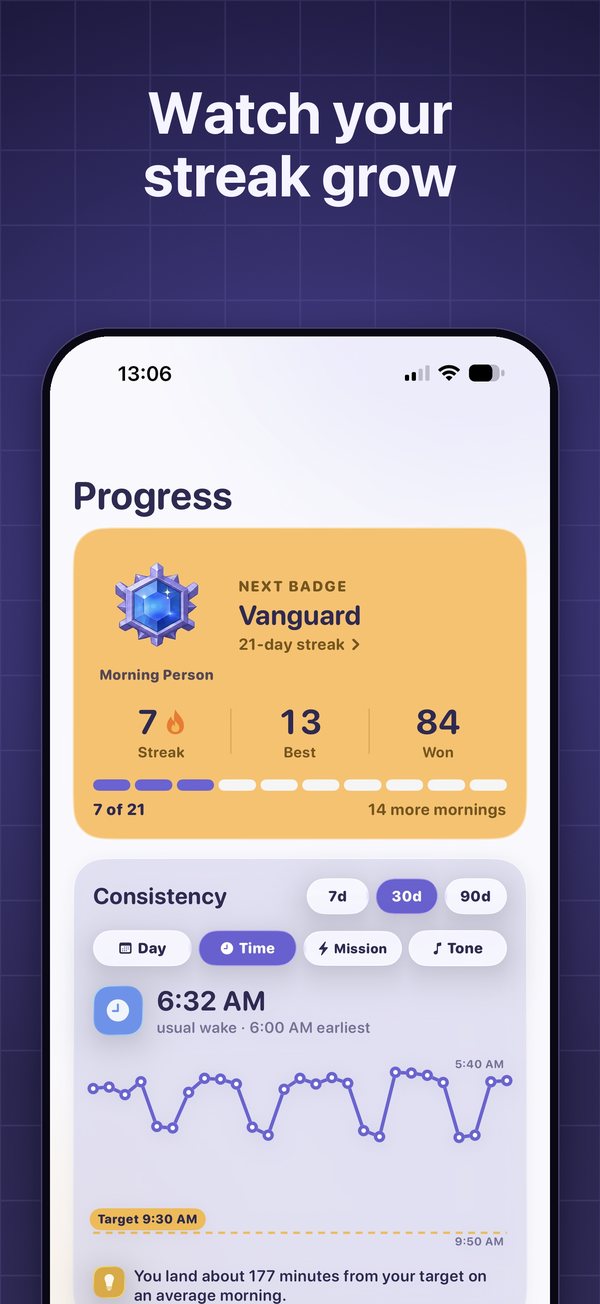
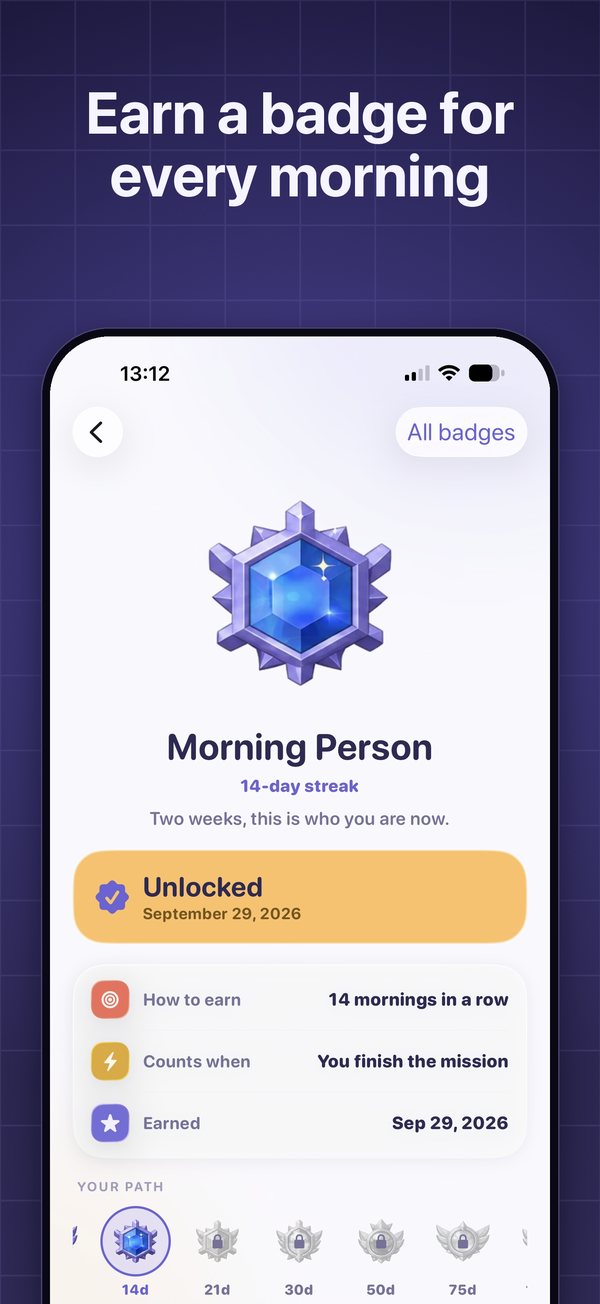
Your wake-up streak counts every morning you win. Miss one and it goes back to zero: no freezes, no repairs. It sounds strict, and it's exactly what makes the streak worth protecting. Habits form through repetition in a stable context, and a streak makes the repetition visible.
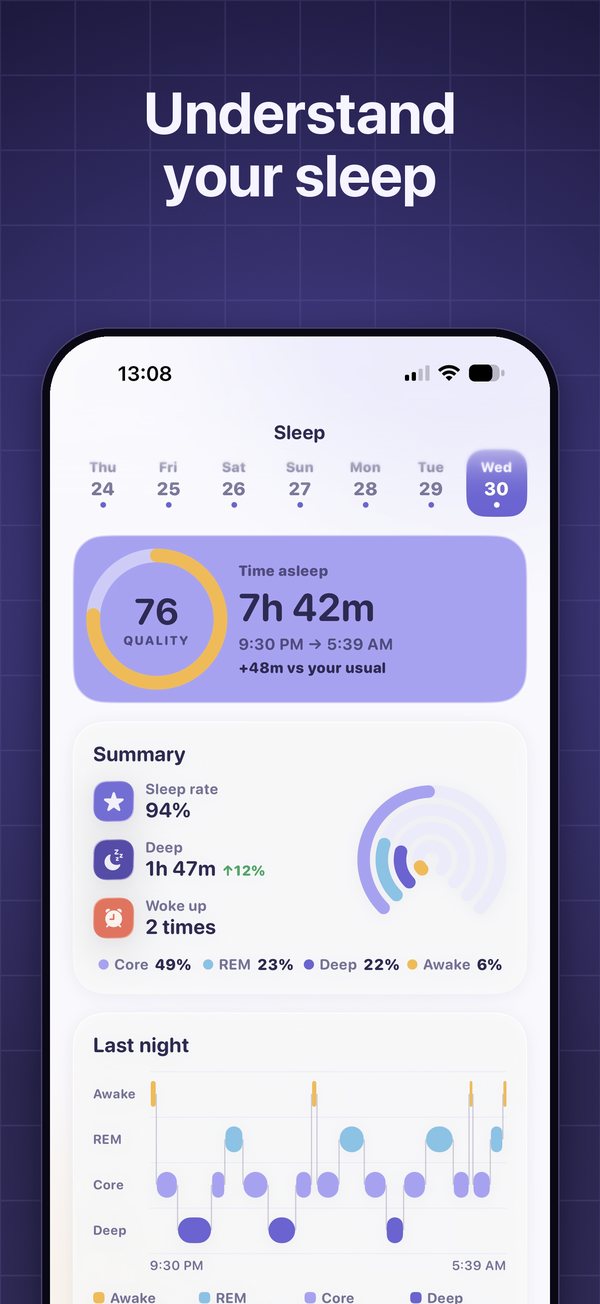
Weky also reads your sleep from Apple Health and shows each night next to the morning that followed, so you can see what a short night does to your mornings.
How to use Weky efficiently: 8 tips
- Choose a mission outside the bedroom. Distance beats difficulty: a barcode in the kitchen wins over hard math in bed.
- Keep the same wake time every day, weekends included. Your body clock settles, and waking gets easier within a couple of weeks.
- Turn on the wake-up check with a random mission.
- Block your feeds from bedtime until the mission is done.
- Get light early. Sky Photo or a window-side mission puts morning light in your eyes in the first minute, the strongest signal to your body clock.
- Set goals you can actually finish. A mission you can't complete isn't strict, it's broken. Raise the bar slowly.
- Add a mission when one gets automatic, instead of making a single mission brutal.
- Protect your sleep. No alarm fixes five hours of sleep. Use the Apple Health view to spot short nights.
Troubleshooting
- The alarm was quiet: open Settings, then Alarm not working?, and use Make it loud. Check the volume of the sound you picked with Preview.
- A camera mission won't start: camera access is off. Turn it on in Weky's settings; the alarm won't stop until the mission is done.
- Blocking stopped working: the access you gave was turned off. Switch it on again from App blocking.
- Silent mode, Focus and Low Power don't stop Weky. Deleting the app does, which is what Weky guard is for.
For more on beating the snooze habit, read how to stop hitting snooze, and if nights are the problem, how to stop scrolling at night.
Frequently asked questions
How do I set an alarm in Weky?
Open the Alarms tab, tap New alarm, set the time on the wheel, choose the days (one time, weekdays, weekends, every day or your own), pick a mission and tap Save alarm. Weky schedules it as a real system alarm, so it rings even if the app is closed.
Can I use more than one mission on one alarm?
Yes. Tap Add more missions in the alarm editor. You can stack up to five different missions on one alarm, and they run in order. The alarm only goes quiet after the last one.
What is the wake-up check?
A second ring a few minutes after you finish your mission (5, 10, 15, 20 or 30 minutes; 10 by default). It can repeat the same mission, use a random one, use a mission you pick, or just ring. It catches the classic trap of finishing the mission in bed and falling back asleep.
How do I block distracting apps at night?
In the alarm editor, open App blocking, allow access when iOS asks, select the apps to block and choose when blocking starts. By default the apps unlock when your morning mission is done; you can also have them unlock when the alarm rings.
Can I snooze a Weky alarm?
No. Weky has no snooze button. The alarm stops only when the mission is done, which is what makes it work for heavy sleepers.
Does Weky ring in Silent mode or Focus?
Yes. Weky schedules a real system alarm, so it rings on the lock screen in Silent mode, Sleep, Work or any Focus, even after a force-quit or restart. Deleting the app is the only thing that stops it.
Is Weky free?
Weky is free to download. Setting alarms needs Weky Pro: monthly, yearly with a 7-day free trial, or lifetime.
References
- Hilditch CJ, McHill AW. Sleep inertia: current insights. Nature and Science of Sleep, 2019;11:155–165.
- Lally P, van Jaarsveld CHM, Potts HWW, Wardle J. How are habits formed: modelling habit formation in the real world. European Journal of Social Psychology, 2010;40(6):998–1009.
- Wright KP, McHill AW, Birks BR, et al. Entrainment of the human circadian clock to the natural light-dark cycle. Current Biology, 2013;23(16):1554–1558.